Animate with Icon Studio
Most animated icons move as one piece - the whole icon spins, bounces or fades. That is fine for a loader, but an orchard looks much better when the tree sways and the apples gently breathe, and a speaker is more convincing when only its sound waves pulse.
Icon Studio is built for exactly that. It opens any icon from our icon library as separate layers, lets you give each part its own animation, and exports an animated SVG, GIF, MP4, WebM, WebP or APNG. No timeline and no keyframes to draw - you pick from the same animation presets used across loading.io and adjust a few sliders.
How It Works
- Open an icon, then click Open in Icon Studio.
- Click a part on the canvas or in Layers.
- Pick an animation - start with static so only your parts move.
- Tune delay, speed and the pivot.
- Download - animated SVG is smallest and stays sharp.
Animate Just One Part
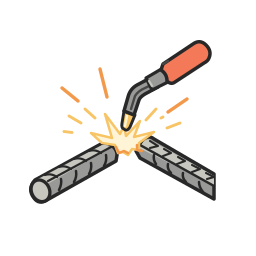
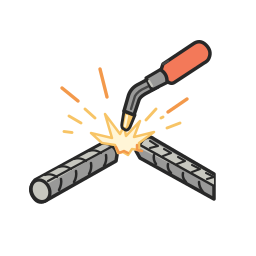


The quickest win is to leave the icon still and move one detail: only the welding sparks tremble, and only the sound waves of a speaker blink one after another.
Notice the Delay slider in the second example. When a part is made of several shapes, Delay spreads their start times across the loop - at 0 they all move together, at 0.5 the three waves light up in turn, from the inside out.
Timing: Delay, Order, Speed and Grouping
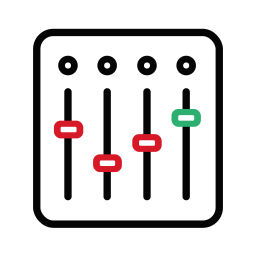
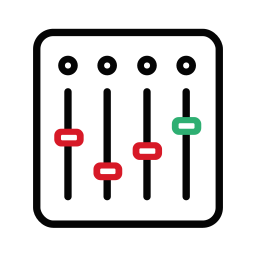


Four settings decide how the shapes in a selection share one animation:
- Delay - how far the shapes are spread out in time.
- Order ( under more options ) - Normal, Reverse or Random. Random shuffles which shape goes first; change the Random Seed in Advanced to get a different shuffle.
- Speed - how many times the animation plays per loop. Different speeds on different parts make a pattern feel natural instead of mechanical.
- Grouping - Each shape animates every shape on its own, By group keeps each sub-group ( like a slider knob and its highlight ) together, Whole selection moves everything as one.
The faders of a mixing console drift up and down by group, its indicator lights blink in random order, and the bars of an audio waveform bounce at three different speeds.
Tune the Motion and Move the Pivot

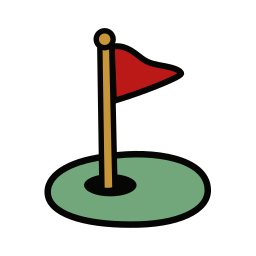
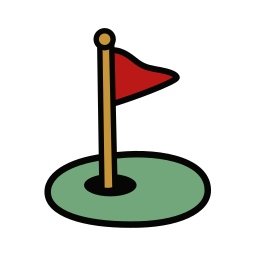
Every animation has its own parameters under tune - how far a swing rotates, how many bounces a fall-in makes, how strong a flicker is. Rotations and scaling happen around a pivot: drag the pivot cross on the canvas to move it, for example onto a flagpole so the flag waves from the pole instead of from the center of the icon.
Group, Rotate and Layer Your Animations


You can also reshape the icon itself. Select layers with ⇧ or ⌘ click, press ⌘ G to group them and drag the top dot of the selection to rotate them. Then split a set of shapes into smaller selections and give each one a different Begin - the rain drops fall in four overlapping waves, so the rain never looks like it repeats.
Handy Shortcuts
Formats and License
A still SVG or PNG of your edited icon is free to download under the icon's own license, shown on the icon's page:
- Loading.io FREE License - free to use, no credit needed.
- Loading.io BY License - free to use with attribution, or pay to remove the attribution.
Animated formats - animated SVG, GIF, MP4, WebM, WebP and APNG - are part of a subscription. Not sure which one to pick? Read our guide to animation formats.
You can also Save your work as an asset and come back to it later - colors, layers and animations are kept.
Start Animating
Find an icon you like, open it in Icon Studio, and make it move the way you picture it - one part at a time.
Browse Icons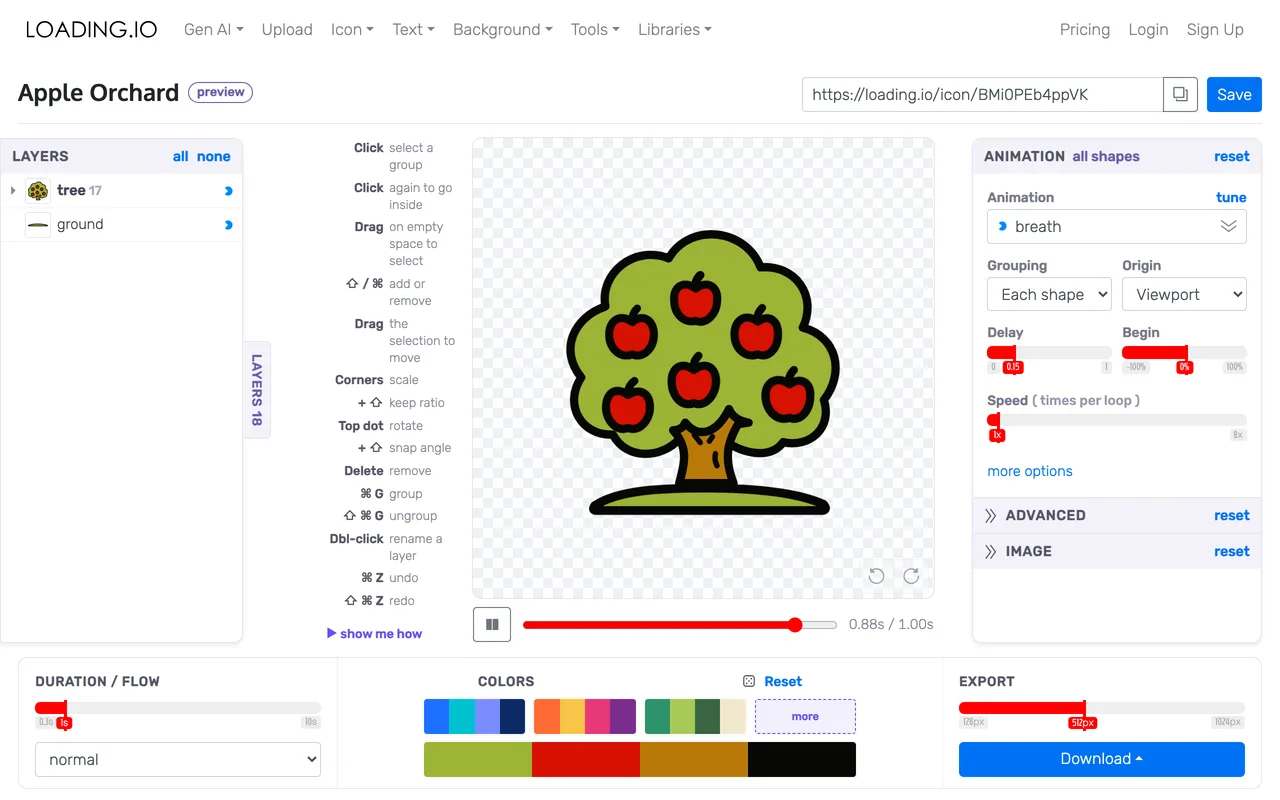

 / 見聞科技有限公司 VAT No. 52518929